Desmos Geometry Calculator: Draw Shapes, Measure Angles & More

The Desmos geometry calculator is the free online tool students use to draw shapes, measure angles and explore geometry without paper, a ruler or a compass. It works in any browser, needs no sign-up, and saves your work as you go.
If you already know the Desmos graphing calculator, the geometry tool will feel familiar. The difference is simple: instead of typing equations, you draw points, lines and shapes directly on the canvas, and Desmos measures everything for you.
1. What Is the Desmos Geometry Tool?
The Desmos geometry tool is a free online workspace for geometry. You open it at desmos.com/geometry and get a blank canvas with a toolbar. From there you can place points, draw segments and circles, build polygons, and measure lengths, angles and areas.
It is part of the same Desmos family as the graphing calculator, the scientific calculator and the 3D calculator. Everything is free, and there are no ads. Teachers use it for class demonstrations, and students use it for homework, revision and exam practice.
The tool is built for exploration. Drag a point and every measurement connected to it updates at once. That live feedback is what makes it so useful for learning: you see how a shape changes instead of just reading about it.
2. How to Open the Desmos Geometry Calculator
- Go to desmos.com/geometry in any browser on a laptop, tablet or phone.
- A blank canvas opens. No account is needed to start drawing.
- Use the toolbar on the left to pick a tool: point, segment, line, circle, polygon, angle or text.
- Click on the canvas to place your first point, then keep building from there.
- To save your work, sign in with a free Desmos account, or take a screenshot if you only need it once.
The geometry tool also lives inside the Desmos Classroom activities teachers assign, so if your teacher sends you a link, it opens the same canvas with their activity loaded.
3. Draw Your First Shape
Start with a triangle. Pick the polygon tool, click three points on the canvas, then click the first point again to close the shape. Desmos draws the triangle and labels its sides.
Now try a circle. Pick the circle tool, click once for the centre, then click again to set the radius. Drag the second point and the circle grows or shrinks, the radius value updates live.
Other shapes work the same way:
- Segments and lines: click two points and Desmos joins them. A segment stops at its endpoints; a line keeps going.
- Polygons: click point after point, then close the shape. Squares, rectangles, pentagons, all the same method.
- Angles: pick the angle tool and click three points. Desmos marks the angle and shows its size in degrees.
Everything you draw stays editable. Click any point and drag it, and the whole shape follows. That is the fastest way to test an idea: change one point and watch what happens to the rest.
4. Measure Angles, Lengths and Areas
Measuring is where the Desmos geometry calculator earns its place. You do not need a protractor or a ruler, Desmos measures for you, and the measurements stay live.
Click a segment to see its length. Click an angle to see its size in degrees. Select a polygon to see its area and perimeter. The values sit next to the shape on the canvas, and they update the moment you drag anything.
This is useful for checking homework. Draw the shape from your textbook, read the measurements Desmos gives you, and compare them with your own working. If they match, your method is right. If they do not, drag a point and see where your drawing went wrong.
Teachers use the same feature for demonstrations. They can show a whole class how the angles of a triangle always add to 180 degrees by dragging one vertex around while everyone watches the numbers change.
5. Transformations: Translate, Rotate, Reflect and Dilate
Transformations are one of the best reasons to use the geometry tool instead of paper. Doing them by hand takes minutes; in Desmos they take seconds.
- Translate: select a shape and drag it to a new position. Every point moves the same distance in the same direction.
- Rotate: pick a centre of rotation, then turn the shape around it. Desmos shows the angle of rotation as you drag.
- Reflect: choose a mirror line and flip the shape across it. The reflection appears instantly.
- Dilate: scale a shape up or down from a centre point. Lengths and areas update so you can see the scale factor working.
Try this: draw a triangle, reflect it across a vertical line, then rotate the reflection by 90 degrees. On paper that is a long exercise. In Desmos it is three clicks, and you can undo any of them.
6. Geometry for Classrooms: What Teachers Use It For
Teachers use the Desmos geometry tool because it turns a static diagram into something the class can play with. A teacher can build a construction once, share the link, and every student gets the same live diagram on their own device.
Common classroom uses include showing how circle theorems work, letting students discover the properties of quadrilaterals by dragging vertices, and building transformations one step at a time so the class can follow along.
Students can also share their own constructions with a teacher by sending the link. That makes it easy to hand in a diagram as homework, no photo of a paper sketch needed.
7. Geometry Tool vs Graphing Calculator: Which One Do You Need?
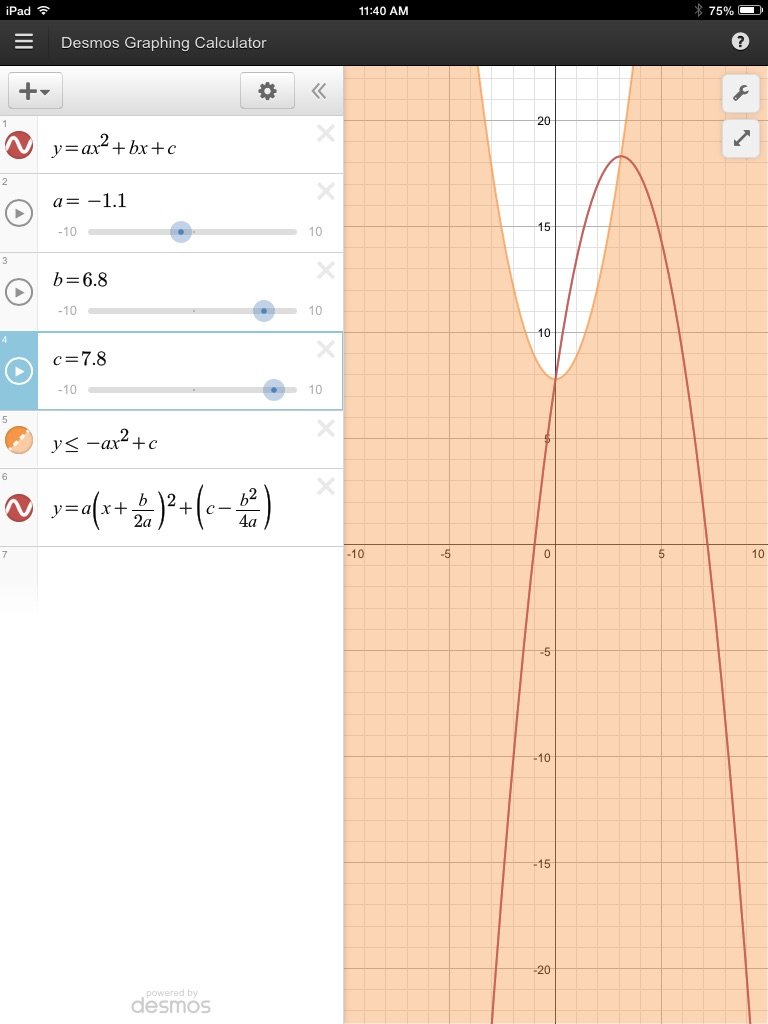
The two tools look similar but they do different jobs. Use the geometry tool when you want to draw and measure shapes, points, lines, circles, polygons, angles and transformations. Use the graphing calculator when you want to plot functions and equations on a coordinate grid.
Many students need both. A geometry question about a circle might start in the geometry tool, while a question about the equation of that same circle belongs in the graphing calculator. If you are not sure which one to open, start with the geometry tool for drawing and the graphing calculator for equations. Our guide to the Desmos graphing calculator explains the graphing side in full.
Frequently Asked Questions
Is the Desmos geometry calculator free?
Yes. It is completely free at desmos.com/geometry. There are no ads, no paid version and no sign-up needed to start drawing. A free account only matters if you want to save your work.
Can I use the Desmos geometry tool on a phone?
Yes. It works in the browser on iPhone and Android. The canvas is touch-friendly: tap to place points and drag them with your finger. A bigger screen is more comfortable, but the phone version works fine for quick drawings.
Does the geometry tool work offline?
No. Like the rest of Desmos, the geometry tool needs an internet connection to load. Once it is open, it keeps working if your connection drops briefly, but you should save or screenshot your work before closing the tab.
Can I print my Desmos geometry drawing?
Yes. The simplest way is to take a screenshot of the canvas. You can also use your browser’s print function, which prints the page as it appears on screen.
Is the Desmos geometry calculator allowed in exams?
That depends on your exam board. Most exam boards do not allow any calculator with a screen during geometry exams, and the geometry tool is a study and homework aid, not an exam tool. Check your exam rules before test day. For exams that do allow a calculator, read our guide to Desmos Test Mode.
Conclusion
The Desmos geometry calculator takes the hardest part of geometry, accurate drawing and measuring, and makes it instant. You draw a shape, Desmos measures it, and you can drag any point to see how everything changes. For homework, revision and classroom demonstrations, it is one of the most useful free tools a maths student can have.
Open desmos.com/geometry, draw your first triangle, and drag a vertex. Once you see the measurements update live, paper geometry feels slow by comparison.